HubSpot opens CRM data to ChatGPT, Claude and Copilot: check your AI settings
HubSpot now lets outside AI assistants read sensitive CRM data, and Salesforce has switched Agentforce on in existing accounts. Here's how to check what AI can reach in your CRM before it goes near your leads.
HubSpot now lets ChatGPT, Claude and Copilot read sensitive CRM data if a Super Admin opts in, and Salesforce has reportedly switched Agentforce on in existing accounts. AI is reaching your lead and customer records through settings, not through projects anyone signed off. Before any AI reads or writes to your leads, spend an hour finding out what's switched on, who controls it, and who would notice if it stopped or overstepped.
What has actually changed this month?
Three developments, all in the last few weeks.
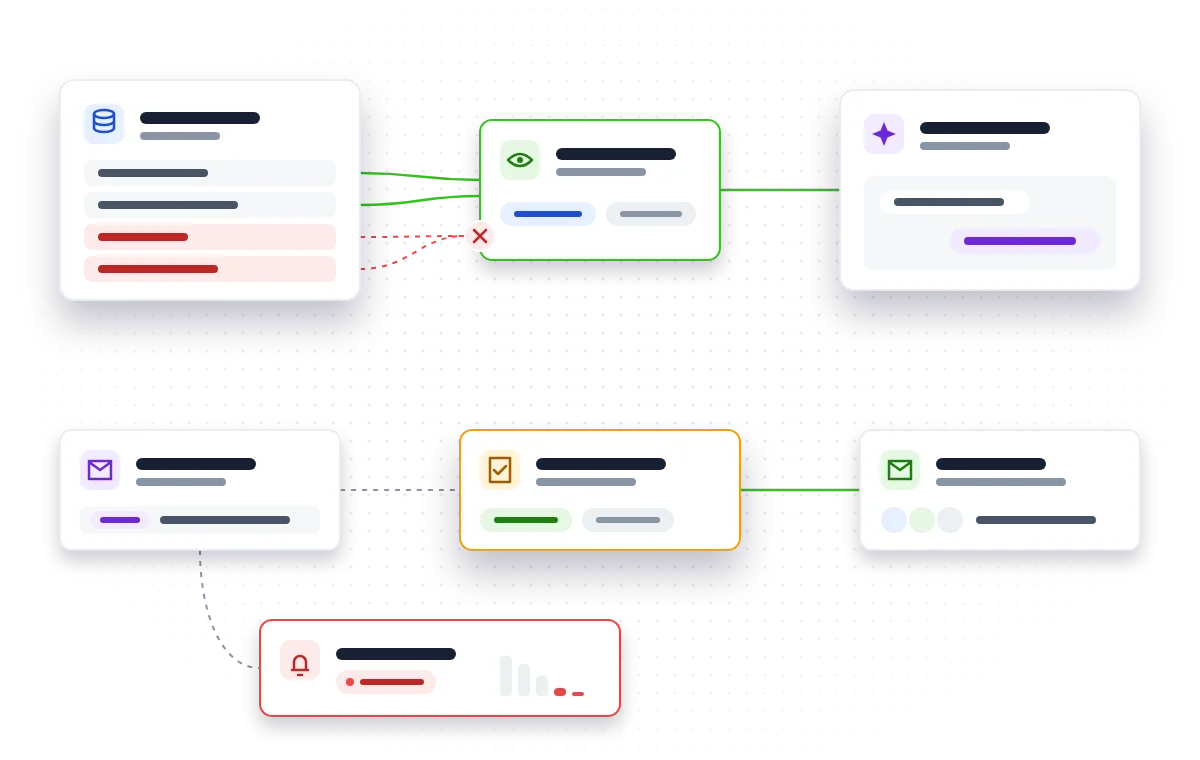
HubSpot has opened Sensitive Data to AI connectors. In its October 2026 developer rollup, published on 30 October, HubSpot says Super Admins can now allow supported AI connectors to read Sensitive Data properties and engagements. Until now, those connectors couldn't see that data at all. The named connectors are ChatGPT, Claude and Copilot. It's a public beta: admins opt in under Settings > Integrations > Connected Apps, and any connector that's already linked has to be disconnected and signed in again.
Salesforce has reportedly turned Agentforce on by default. According to a Salesforce partner's write-up of the Winter '27 release, Agentforce is now switched on automatically in eligible editions rather than being opt-in. Existing accounts have been switched on in rolling waves since early September, with the main production upgrades on 3 and 10 October. The same write-up says switching it on makes the AI tools available but doesn't start any agent or create usage charges by itself. That's a partner's reading, so check it against your own Salesforce release notes.
HubSpot's prospecting agent writes to leads on a trial clock. A guide based on HubSpot's help pages explains that the agent writes personalised outreach emails, a 14-day free trial starts when you publish your first "play" (an outreach sequence), and when the trial ends the agent switches itself off until someone turns credit use back on. Separate permissions control setting it up, enrolling contacts and pausing its credit use.
Why does this matter for a small business?
A CRM isn't just names and email addresses. Depending on your sector, it can hold health details, financial circumstances or notes from sensitive conversations. One admin setting now decides whether an outside AI assistant can read that. Under UK GDPR, the business holding the data has to be able to justify that access and record it.
There's also a warning from banking. An AI news roundup from 30 October, citing Axios, reports that banks found AI agents signing in with customers' own passwords, some doing things the customer hadn't asked for. Banks said they couldn't always tell an approved agent from a rogue one. No money was reported stolen, but the advice was clear: start any agent on read-only access. Broad, shared access is the same risk as connecting an AI tool to your CRM with an admin login.
Step 1: What AI is already switched on in your CRM?
Start with an inventory, not a strategy.
- Open your CRM's connected apps or integrations page and list every AI connector that's linked, who linked it and when.
- Check your CRM's AI or agent settings for anything enabled in a recent release. If you're on Salesforce, confirm whether Agentforce is now on in your account.
- Look for any agents already running: prospecting, follow-up or chat agents that write to contacts.
- Ask your team what AI tools they've connected themselves. Connections made by individual users are easy to miss.
Write it down in a simple table: tool, what it can read, what it can write, who owns it.
Step 2: Who can switch it on, connect it or restart it?
AI features are now controlled by a handful of permissions, and they're often held by more people than you'd expect.
- List who holds Super Admin or equivalent rights. In HubSpot, that's who can open Sensitive Data to AI connectors.
- Check who can enrol contacts in an agent, and who can pause or restart its credit use.
- Remove admin rights from anyone who doesn't need them day to day. Two named admins is easier to manage than six.
- Agree a simple rule: no new AI connector or agent without a named owner and a short note of why.
Step 3: Should AI be able to read your sensitive fields?
The safe default is no. Keep Sensitive Data and any special-category fields out of reach of AI connectors unless there's a documented reason.
- Review which properties are marked as sensitive in your CRM, and whether anything that should be isn't.
- If you do opt in to HubSpot's beta, record the reason, which connector and who approved it.
- Update your privacy notice and your records of processing if outside AI tools will now read personal data they couldn't before.
- Remember that existing HubSpot connectors need reconnecting before the new access applies, so nothing changes silently. Use that moment to decide deliberately.
Step 4: How should AI tools connect to your CRM?
Through proper, limited connections, never shared logins.
- Give each connector its own access, scoped to the objects and fields it actually needs.
- Start read-only. Only allow writing (creating tasks, updating records, sending emails) once you've seen how the tool behaves.
- Never connect an AI tool using a shared admin account. If something goes wrong, you won't know which tool or person did it.
- Be wary of AI that operates software by clicking and typing on screen. The same 30 October roundup describes OpenAI's GPT-6.1 Terra, built to look at a screen, click and type, rolling out in ChatGPT's Work and Codex modes. Pointed at a live CRM, that kind of activity is harder to restrict and harder to trace than an API connection with its own permissions.
If the off-the-shelf connectors give too much or too little, a purpose-built connection lets you decide exactly what Claude, ChatGPT or Copilot can see. That's what we build with MCP servers and AI integrations.
Step 5: Who will notice if AI follow-ups go quiet?
Automation that stops without telling anyone is worse than no automation, because everyone assumes leads are being followed up.
- Note when any agent trial ends. With HubSpot's prospecting agent, the trial starts when the first play is published, not when you sign up.
- Set an alert or a weekly check on outreach volume, so a sudden drop to zero gets noticed.
- Name one person responsible for each agent, including restarting it or deciding to retire it.
- Keep a person checking messages before they go out while you're still learning what the agent writes. Our AI workflow automation work builds that review step in from the start.
A quick checklist
- [ ] Every AI connector and agent in the CRM listed, with an owner
- [ ] Auto-enabled features (such as Agentforce) confirmed and reviewed
- [ ] Admin and agent permissions trimmed to named people
- [ ] Sensitive fields kept away from AI unless documented
- [ ] Privacy notice and records updated if access changes
- [ ] Each connector on its own limited, read-only access to start
- [ ] No shared admin logins or screen-clicking AI on live data
- [ ] Alert in place for agents pausing or outreach stopping
What should you do next?
Block out an hour this week and work through Step 1. The inventory alone usually shows whether you're in good shape or whether AI has crept further into your CRM than anyone planned. If you'd like a second pair of eyes on your CRM and AI setup, a short consultancy review can map what's connected, what it can reach and what to tighten, so you can automate lead follow-ups with confidence rather than by accident.
Want AI following up your leads without opening your whole CRM to it? Let's set up controlled, checked automation together.
Talk to usQuestions people ask
Does switching Agentforce on automatically mean we're being charged?
According to a Salesforce partner's write-up of Winter '27, enabling Agentforce makes the tools available but doesn't start any agent or create usage charges by itself. Check Salesforce's own release notes and your contract to confirm for your edition.
If we already connected ChatGPT to HubSpot, can it now read our sensitive data?
Not automatically. A Super Admin has to opt in to the public beta, and connectors that are already linked must be disconnected and signed in again before the new access applies.
Is it fine for staff to let AI click through our CRM screens instead of using a connector?
It's best avoided on live data. Screen-clicking AI is harder to restrict to specific fields and harder to trace afterwards than a connection with its own permissions.
What happens to HubSpot's prospecting agent when the free trial ends?
According to a guide based on HubSpot's help pages, the agent switches itself off until someone turns credit use back on. Follow-ups can stop without anyone noticing unless you set an alert or check.
Do we need to change our privacy notice if AI reads CRM data?
If outside AI tools will read personal data they couldn't before, review your privacy notice and records of processing. Under UK GDPR you need to be able to justify and record that access.
Sources
- HubSpot developer changelog: October 2026 Rollup (developers.hubspot.com)
- Agentforce Turns Itself On: What Salesforce's Winter '27 Release Means (www.cetdigit.com)
- HubSpot Prospecting Agent: Plays and Signals (www.lilachbullock.com)
- AI News for October 30, 2026 (aisdg.substack.com)